 SyncCrate
Starfield guide · Updated
Your Starfield mods on another PC.
Set up a second PC or a friend's game with your Starfield mods. SyncCrate copies the mods in the game's Data folder, and after the first time only the files that changed. The game's own files, DLC and Bethesda's Creations stay where they are.
FreeOpen sourceNo cloudWin · macOS · Linux
// 01 Why
Why copying Starfield mods isn't one folder
Starfield mods end up in more places than most games: plugins and archives in the game's Data folder, SFSE plugins that need the script extender, and loose files that some guides put in a second Data folder in Documents. Moving a setup to another PC means remembering all of it.
The game's Data folder also holds the base game, Shattered Space and Bethesda's own Creations, which shouldn't be copied to anyone who doesn't own them.
SyncCrate copies only the mods in the host's game Data folder, compares every file by content, and after the first sync sends only new and changed files. You see the list before anything changes.
// 02 What syncs
What SyncCrate syncs for Starfield
| Folder | Path in the game folder | Files |
|---|---|---|
| Mods & Plugins | Data/Plugins (.esm, .esp, .esl), archives (.ba2), SFSE plugins, meshes, textures and mod settings in the game's Data folder. Starfield's own files, DLC and Bethesda's SFBGS Creations are skipped. | .esm .esp .esl .ba2 .dll .ini .json .toml .txt .xml .nif .dds |
// Where it looks
- Steam
steamapps/common/Starfieldin every Steam library, on every drive- Anywhere else
- Point SyncCrate at the folder yourself, once
Built in for Starfield
- Script warnings.
.dllfiles run code on your PC, so they're flagged for you to review before they sync. - Turn mods on and off. Disabled mods move to a
_Disabledfolder the game doesn't load. - Game-running warning. SyncCrate warns you before syncing while Starfield is still open.
- Undo and history. Undo the last sync in one click, and put back any single file a sync replaced or deleted.
// 03 How it works
Sync Starfield in three steps
Install and add the game
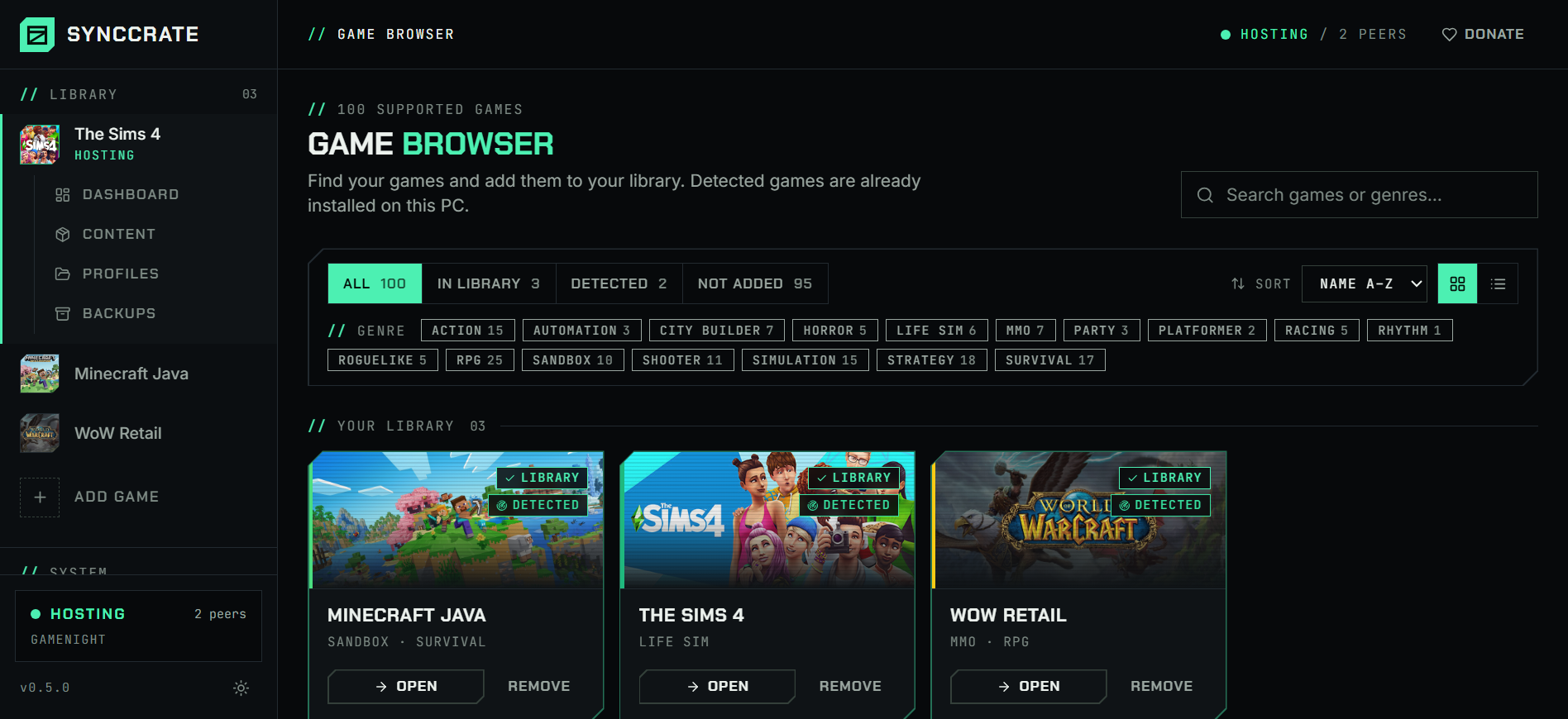
Install SyncCrate on every PC and add Starfield in the Game Browser. Its folder is found automatically.
One PC hosts
The PC with the setup everyone should have clicks Start Hosting. The others pick it under Scan for Hosts on the same network, or paste its join code from anywhere.
Compare and sync
Check the list of new, changed and conflicting files, then Sync Now. Only the files that differ are copied, PC to PC.
TipBoth PCs need the same game version and SFSE installed once. SFSE plugins are built for specific game versions, so update the game on every PC before syncing.
// 04 Common problems
When Starfield mods don't match
SFSE plugins after a game update
SFSE and its plugins (
.dll) are built for a specific game version. When one PC updates and the other doesn't, plugins fail to load.Put both PCs on the same game and SFSE version first. SyncCrate then copies the host's exact plugin files, and flags them before they sync so you know what runs code.
Loose files in Documents
Some mods are installed as loose files into
Documents\My Games\Starfield\Datainstead of the game's Data folder. That folder isn't the one SyncCrate syncs.Install mods into the game's Data folder (most mod managers can do that), and SyncCrate copies them. Anything left in Documents has to be copied separately.
Load order doesn't come along
Which plugins are active, and in what order, is saved in
Plugins.txtin your AppData folder, not in Data.SyncCrate copies the files. On the other PC, enable and sort the new plugins once with your mod manager.
Paid content shouldn't travel
Shattered Space and paid Creations sit in the same Data folder as your mods.
Starfield's own files, the DLC and Bethesda's own Creations (
SFBGS…) are never synced. Paid Creations from other authors can't be told apart from mods yet, so check the plan before syncing.
// 05 Starfield
Good to know
- Steam installs are found automatically. For other stores, point SyncCrate at the game folder yourself.
- Creations from the in-game menu belong to each player's Bethesda.net account, so the cleanest way is for everyone to add those in game.
- Your settings and saves stay yours. They live in Documents, and only the game's Data folder syncs.
- SFSE itself sits next to the game's exe and isn't copied. Install it on each PC.
- Scripts run code.
.dllfiles are flagged before they sync. Only sync with people you trust.
// FAQ
Starfield questions
Can I copy my Starfield mods to another PC?
Yes. Install SyncCrate on both PCs, host on the one with your mods, join from the other and Compare & Sync. Then enable the new plugins in your mod manager on the other PC.
Does it copy Shattered Space or Creations?
No for the DLC and Bethesda's own Creations. Each PC needs its own. Paid Creations by other authors don't have a naming pattern SyncCrate can recognise yet, so look at the plan and skip them.
Does it sync my load order?
No. Plugins.txt lives in your AppData folder. Enable and sort the plugins on the other PC once.
Does it work with Mod Organizer 2?
No. MO2 keeps mods in its own folder and adds them to the game only while it runs, so they aren't in Data. Vortex and manual installs work.
// Related game guides
All games · SyncCrate supports 100 games.
// Free · Open source · Windows, macOS, Linux
Same Starfield setup on every PC.
Install SyncCrate on each PC, one of you hosts, everyone else joins. No accounts, no cloud, nothing uploaded anywhere.